Beyond the Documentation: Installing BI Gateway Reports in a Multi-Node AVEVA MES Environment

Bridging the gap between the official installation guide and a real-world multi-node deployment.
There is always a point during a new installation when you realize your environment doesn’t quite match the documentation. The screenshots look familiar, the components have the same names, but the architecture is different enough that the next step isn’t as straightforward as it should be.
That was the case when setting up BI Gateway Reports in our AVEVA MES development environment. The official documentation is written around a single-node deployment, while our environment distributes responsibilities across multiple servers. What should have been a standard installation quickly became an exercise in determining where each component belonged, how the nodes should communicate, and which configuration changes were actually required.
This article captures the installation process that ultimately worked in our multi-node environment. It outlines the architecture, the configuration decisions made, and the issues encountered along the way, so others facing a similar deployment can avoid the same roadblocks.
Environment Overview
Note: The server placement described in this article reflects our development environment. Organizations may choose different server distributions depending on infrastructure standards and sizing requirements.
| Node | Purpose | Component | Version |
|---|---|---|---|
| MES-APP01 | Primary AVEVA MES Application Server 2023 | AVEVA MES | 2023 |
| MES-SQL01 | SQL Server hosting MES databases and SSRS databases 2023 | BI Gateway | 2023 |
| MES-DEVSQL01 | Development SQL instance used for custom views and reporting objects | SQL Server | 2019 |
| MES-OCM01 | Global Repository (GR), Operations Control Manager | ||
| MES-BIGW01 | BI Gateway Server | 2023 |
Architecture Overview
The diagram below illustrates how the five nodes interact within this multi-node configuration. Understanding the relationships between nodes before beginning the installation helps avoid misrouted configurations and reduces troubleshooting time.
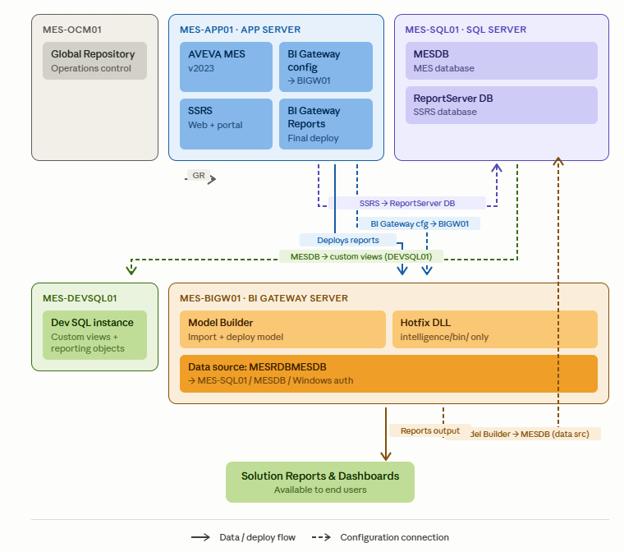
MES-APP01 is the central hub of the setup. It hosts the core AVEVA MES application, the SSRS reporting service, the BI Gateway configuration (which points to BIGW01), and the BI Gateway Reports component, where final deployment is carried out. Nearly all configuration work in this guide is performed here.
MES-SQL01 acts as the SQL Server host for two key databases: MESDB, which stores live MES operational data, and ReportServer DB, which is created during SSRS setup to hold report metadata and configuration. SSRS on APP01 connects to ReportServer DB here using Windows Authentication.
MES-BIGW01 is the dedicated BI Gateway server. It runs Model Builder, where the MESIntelligenceModel.json is imported and deployed, and is the only node where the Hotfix DLL (HF_2172196) should be placed, specifically in the intelligence/bin/ directory. Its data source is configured to read from MESDB on MES-SQL01, and the final Solution Reports and Dashboards are produced from this node.
MES-OCM01 hosts the Global Repository and Operations Control Manager. It connects directly to MES-APP01 and is relevant primarily for monitoring — the OCM logger is where errors such as “Invalid configuration deployed” surface when the hotfix is misapplied.
MES-DEVSQL01 is a development SQL instance that draws data from MESDB on MES-SQL01. It is used to build and maintain custom views and reporting objects and does not participate directly in the BI Gateway deployment pipeline. Prerequisites
- Service accounts have local administrator rights during installation.
- SQL connectivity between application and database servers has been verified.
- Required firewall ports for BI Gateway and SSRS are open.
- Hotfix HF_2172196 is available.
Step 1: Reran MES with BI Gateway Components
The default MES installation does not include BI Gateway or BI Gateway Reports. Initially, these components were missing from my setup, which prevented me from proceeding. To fix this, I reran the MES installer on Node MES-APP01 and made sure to select both BI Gateway and BI Gateway Reports. Once the installation was completed and the node was rebooted, the components appeared in the Configurator, confirming that they had been properly installed.
Step 2: Install and Configure SSRS on Node MES-APP01
BI Gateway Reports require SQL Server Reporting Services (SSRS) to be installed and running. SSRS was installed on the primary MES Application Server because the documentation states, “To install the Quality Characteristic Detail report’s SPC Chart control, the MES BI Gateway Reports component must be installed and configured on the same node as the BI Gateway Datastore and SQL Server Reporting Services (SSRS).” SSRS was on Node MES-APP01 by leaving the service account as the default Virtual Service Account and then pointing to the database setup to Node MES-SQL01. During this step, a new database was created called ReportServer and Windows Authentication for the connection was used. For the Web Service URL and Web Portal URL, default settings were applied, and once the configuration was finished, it was verified that both services opened successfully in a browser. This confirmed that the SSRS installation was correctly communicating with the SQL Server database on Node MES-SQL01.
Step 3: Configure BI Gateway on Node MES-APP01
After SSRS was in place, the focus moved back to the MES Configurator on Node MES-APP01 to configure BI Gateway. The configuration mirrored what was already set up on Node MES-BIGW01, which is the BI Gateway host, but with one critical adjustment: instead of using localhost for the server’s name, the specified Node was MES-BIGW01. This ensured that the MES node would properly connect to the BI Gateway service hosted on another server.
Step 4: Import the BI Gateway Model on Node MES-BIGW01
The next step was to import the BI Gateway model. On Node MES-BIGW01, URL https://localhost:61075 was accessed in a browser, opened the AVEVA BI Gateway Model Builder, and attempted to import the file MESIntelligenceModel.json. The Overwrite option was selected, but the import initially failed because an existing model was already deployed. To resolve this, the existing model was undeployed, which changed its status to inactive, and then re-imported the file. With the previous model cleared, the import succeeded without further issues.
Step 5: Configure the Data Source
Once the model was successfully imported, it was needed to configure the data source in Model Builder. I selected the data source named MESRDBMESDB, went to the General tab, and entered the server’s name as MES-SQL01, the database as MESDB, and Windows Authentication for the connection. After confirming the settings, connection was tested, received the schema, and clicked Done. Then, deployed all components by using the Deploy All option, which pushed the configuration into the environment.
Step 6: Apply Hotfix HF_2172196
The installation required applying hotfix HF_2172196, which involved replacing the file intelligence.runtime.dll. It was important to place this file in the correct location: only on Node MES-BIGW01, where BI Gateway is installed, within the directory intelligence/bin/. The hotfix should not be applied to Node MES-APP01 or any other node. Once the DLL file was replaced on Node MES-BIGW01, all nodes were rebooted to make sure the change was properly applied across the environment.
Step 7: Configure BI Gateway Reports on Node MES-APP01
The final step was configuring the BI Gateway Reports using the MES Configurator on Node MES-APP01. Under the MES > BI Gateway Reports section, following details were entered: BI Gateway Database Server set to MES-BIGW01, the appropriate database name provided, SQL Server Reporting Services Node set to MES-APP01, Target Report Server Folder specified as ReportServer, and Target Report Folder created as MES Reports. Also, the option to use the current user’s Windows credentials was checked. After applying these settings and clicking Configure, the process was completed successfully, and the BI Gateway Reports were available. Key Takeaways
Working in a multi-node environment requires careful attention to which services are installed and configured on each node, and skipping even one step can create significant roadblocks. SSRS must be properly installed and tested before BI Gateway Reports can function. The hotfix DLL should only be applied on the BI Gateway node (MES-BIGW01) and not on any other server. Finally, even though the BI Gateway service is hosted on Node MES-BIGW01, the Configurator on the MES node (MES-APP01) is where the final report deployment must be carried out. Common Issues and Solutions
| Issue | Root cause | Solution | Comment |
|---|---|---|---|
| Missing BI Gateway Components in Configurator (Node MES-APP01) | BI Gateway features not installed during installation. | Rerun MES installer in Modify mode and install BI Gateway components along the process. | Initially, the BI Gateway and BI Gateway Reports components did not appear in the Configurator. The cause was that these options were not selected during the original MES installation. Reinstalling MES on Node MES-APP01 with the proper options selected, followed by a reboot, resolved the issue. |
| Hotfix Deployment Error in OCM Logger “Invalid configuration deployed.” | Hotfix applied to wrong server. | Apply DLL replacement on MES-BIGW01 (BI Gateway Server). | When I first attempted to apply the hotfix, the Operations Control Manager logger returned the error “Invalid configuration deployed.” This happened because I replaced the DLL on Node MES-APP01 instead of Node MES-BIGW01. Replacing the DLL in the correct location on Node MES-BIGW01 and rebooting all nodes fixed the problem. |
| Cryptographic Exception During Model Deployment | Corrupt or mismatched deployed model | Undeployed existing model and redeploy clean model. | During model deployment, I received the error, “System.Security.Cryptography.CryptographicException: Key not valid for use in specified state.” This error was caused by a previously deployed model that had become corrupt or mismatched. The solution was to undeploy the existing model in Model Builder on Node MES-BIGW01, re-import a clean copy of MESIntelligenceModel.json, and then redeploy. Once this was done, the error no longer appeared. |
Installing BI Gateway Reports in a multi-node AVEVA MES environment requires more than simply following the installation guide. Understanding where each component belongs, how the nodes communicate, and when to apply configuration changes can make the difference between a smooth deployment and hours of troubleshooting.
Every AVEVA MES deployment is unique, and real-world environments often introduce challenges that extend beyond the product documentation. Sharing implementation experiences like this helps bridge those gaps, giving others practical insights that can simplify deployment, reduce troubleshooting time, and make future implementations smoother.

Ready to simplify your next AVEVA MES project? Contact our team to get started.
If you’re planning an AVEVA MES implementation, upgrading an existing environment, or navigating a complex multi-node deployment, InSource Solutions can help. Our team has decades of experience designing, deploying, and supporting AVEVA MES solutions, helping manufacturers accelerate implementation and avoid common pitfalls.
Latest Updates
-
Blog
What It Really Takes to Be Ready for Operational Intelligence
-
Event
Workshop: Create Practical Industrial Workflows with AVEVA CONNECT
19 Nov, 2026 -
Event
Webinar – Predict before failure: Driving power reliability through advanced analytics and AI
04 Nov, 2026 -
Event
Hands-On Workshop: Creating a Visualization Dashboard with AVEVA CONNECT
22 Oct, 2026